
A first accessibility check looks for barriers that can prevent people from reading content or completing tasks. It is a starting review, not proof that a website meets every accessibility requirement.
Choose representative pages: the homepage, a long article, a contact form, and any important purchase or booking journey.
Start with keyboard navigation
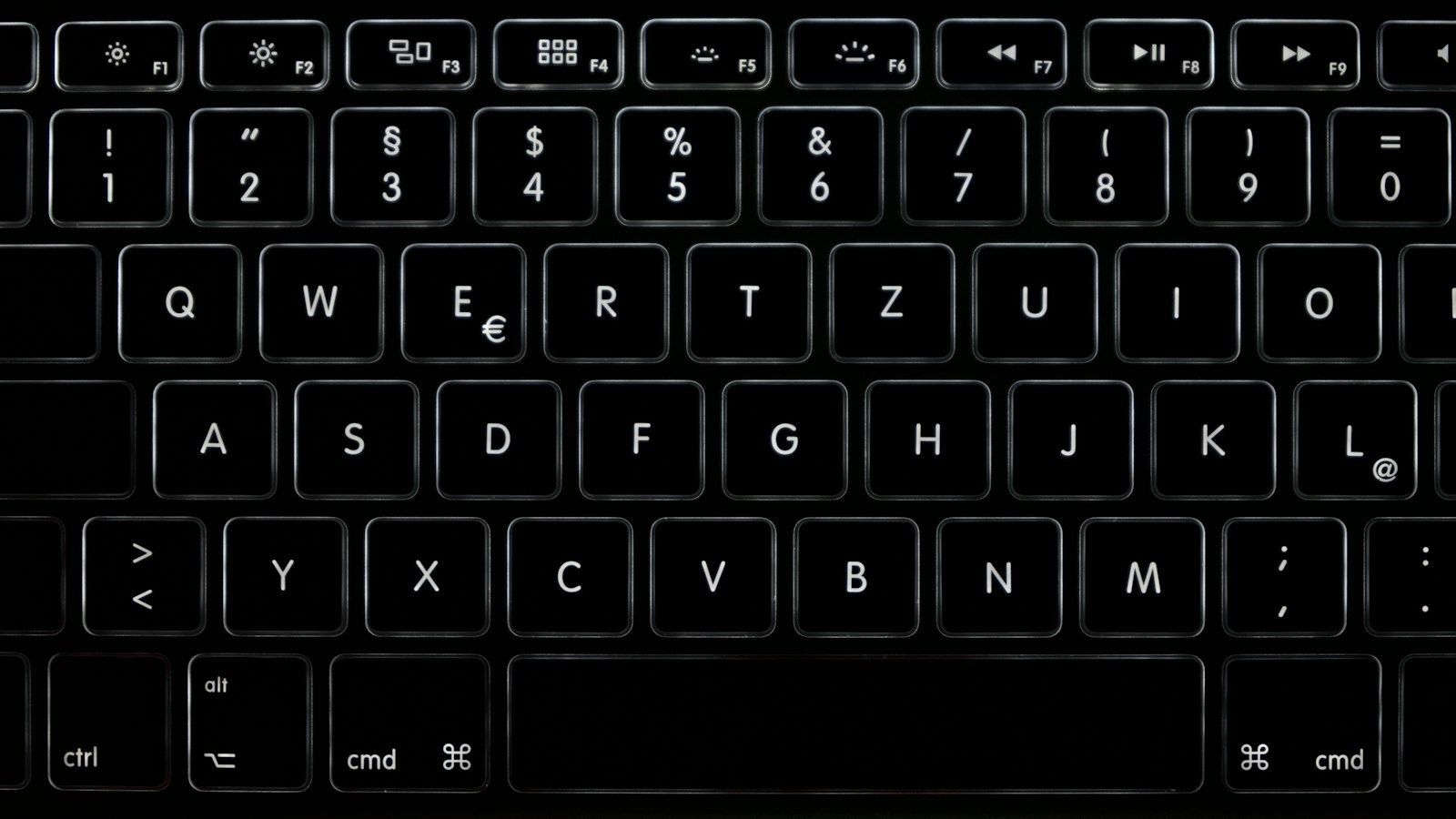
Use the keyboard to move through interactive elements. Check whether you can identify the current focus and reach the important controls in a sensible order.
Try opening and closing menus and moving through forms. Record anything that traps focus or requires a mouse.
Do not make code changes based only on appearance; some problems require a developer to inspect the structure.
Check the page’s outline
Review the main heading and section headings. They should describe the content and form a meaningful hierarchy.
Large or bold text is not necessarily a heading in the underlying page. Use the editor or appropriate inspection tools to check the actual structure.
An article should remain understandable when its headings are read as an outline.
Review form labels and feedback
Every input needs an understandable label or other appropriate identification. Instructions should explain required information and expected formats.
Submit the form with an invalid or missing value using safe test data. Check whether the error identifies the problem and helps you recover.
W3C’s form-label guidance explains the relationship between labels and controls.
Examine images in context
Ask what each image contributes. Informative images need an appropriate text alternative. A complex chart may also need a nearby explanation or data table.
Decorative images should not create unnecessary repetition for someone using assistive technology. A logo used as a link has a functional role that differs from the same graphic used decoratively.
Evaluate the purpose, not just the appearance.
Zoom and inspect readability
Increase browser zoom and check whether content remains readable and controls usable. Look for clipped text, overlapping sections, and fixed elements that cover the main content.
Also examine text contrast with a suitable checking tool. Visual preference alone is not a reliable way to assess contrast.
W3C’s Easy Checks provides a structured introduction to these initial reviews.
Record issues so someone can reproduce them
For each issue, save the page URL, affected element, steps, expected behavior, observed behavior, and relevant device or browser information.
Prioritize barriers that stop a task, such as an inaccessible submit button, while keeping smaller issues in the record.
Repeat the same steps after a fix rather than accepting a general statement that accessibility was improved.
Know the limit of the review
Automated tools and quick manual checks find only part of the picture. A fuller assessment may require specialist testing and input from disabled users.
Use this first review to identify concrete improvements and plan the next level of evaluation. Accessibility is an ongoing part of maintaining a useful website, not a badge earned by running one scan.