
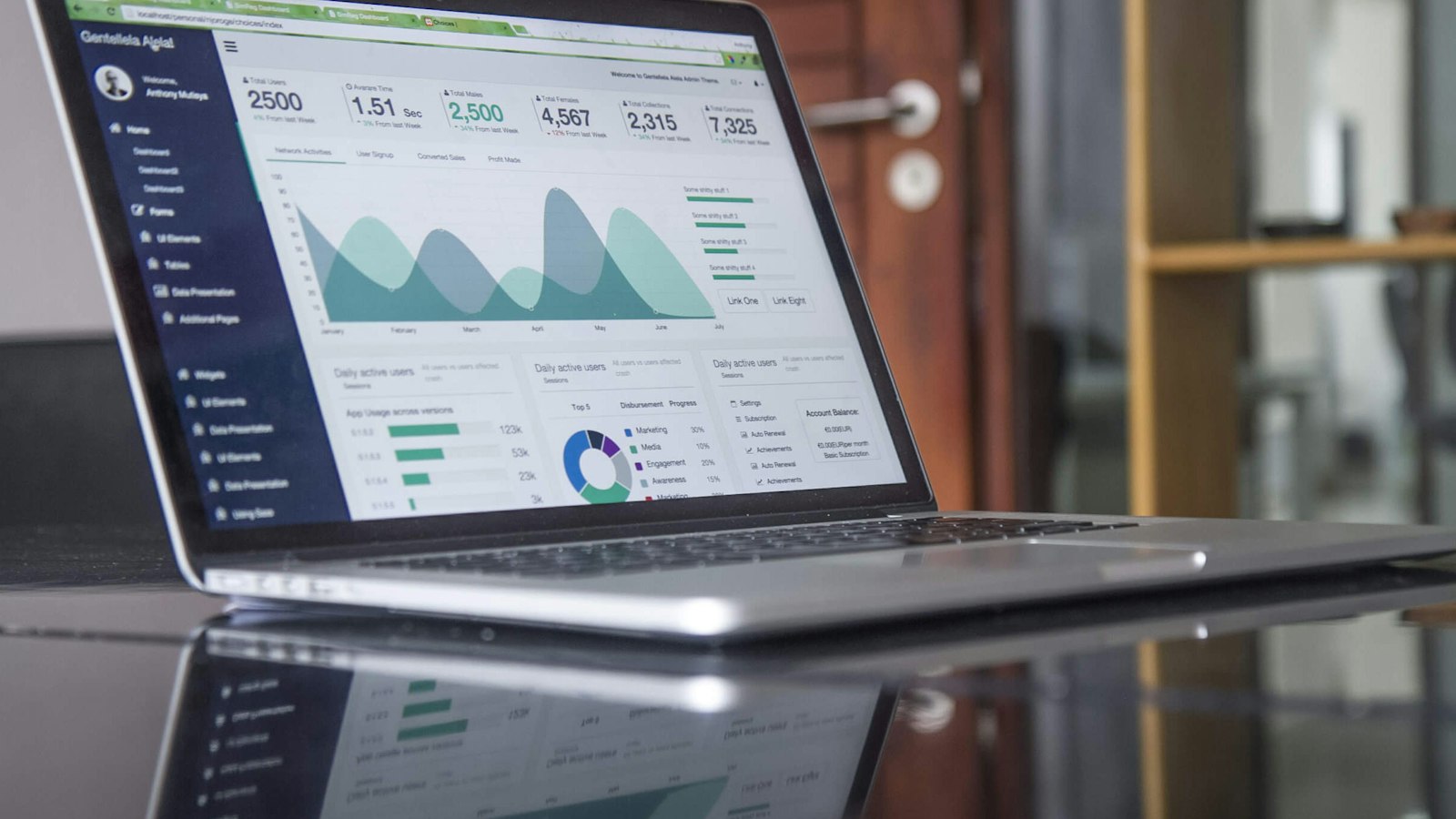
The WordPress dashboard is the control room of your website. It can look crowded at first, especially once plugins add their own menus, but the core is organised logically. This guide walks through each area, explains what it is for and points out the settings every site owner should understand.
Logging in and finding your way
The dashboard is reached at yourdomain/wp-admin. After logging in you see three areas.
- The toolbar along the top, with a link to view the site, a shortcut to add new content and your profile.
- The menu down the left side, grouping everything by type.
- The work area in the centre, which changes with what you select.
The Screen Options tab at the top right of many screens lets you show or hide panels and columns. The Help tab beside it explains the current screen.
Dashboard: Home and Updates
Home shows an overview: recent activity, a summary of content and the Site Health status. Updates lists available updates for WordPress, plugins and themes. Check it regularly. Updates contain security fixes.
Posts
Posts are dated entries that appear in your blog or news section, newest first. They are organised with categories and tags. Under Posts you can add, edit, schedule and delete entries and manage those categories and tags. See How to Organize WordPress Categories and Tags Without Clutter.
Media
The Media Library holds every image, document and file you upload. Here you can add files, edit an image’s title and alt text, and delete what is no longer used. Prepare images before uploading; see How to Prepare Website Images Without Losing Useful Detail.
Pages
Pages hold timeless content: Home, About, Contact, legal texts. They are not listed by date and can be arranged in a hierarchy with parent and child pages. How to Create a WordPress Page and Check It Before Publishing shows the process.
Comments
If comments are enabled, this is where you approve, reply to, mark as spam or delete them. If you do not use comments, switch them off under Settings, Discussion.
Appearance
This section controls the design.
- Themes: install, activate and remove themes. Keep the active theme and one default theme; delete the rest.
- Editor: with a block theme, the Site Editor is where you edit templates, the header and footer, navigation and global styles.
- Customize, Menus and Widgets: with a classic theme, these screens control colours, menus and sidebar content.
Which of these you see depends on the theme type.
Plugins
Plugins add features. The Plugins screen lists what is installed and lets you activate, deactivate, update and delete each one. Fewer, well-maintained plugins are better than many. Deactivated plugins should be deleted, not left in place. Before adding one, see How to Evaluate a WordPress Plugin Before Installing It.
Users
Everyone who logs in has a user account with a role.
- Administrator: full control, including plugins, themes and users.
- Editor: publishes and manages all content.
- Author: writes and publishes their own posts.
- Contributor: writes posts but cannot publish them.
- Subscriber: can only manage their own profile.
Give each person their own account with the lowest role that lets them do their work. Keep the number of administrators small.
Tools
- Import and Export: move content between sites. See How to Export WordPress Content and Check the Result.
- Site Health: reports on configuration, security and performance issues, with explanations.
- Export and Erase Personal Data: tools for handling privacy requests.
Settings
These are the screens to review once, carefully.
- General: site title, tagline, addresses, administrator email, timezone, language. Do not change the two address fields unless you know why. A wrong value can lock you out.
- Writing: defaults for new posts.
- Reading: which page is the homepage and which lists posts, and the option to discourage search engines. That box must be unticked on a live site.
- Discussion: comment settings.
- Media: default image sizes.
- Permalinks: the structure of your addresses. Choose before launch; see How to Choose WordPress Permalinks Before Your Site Launches.
- Privacy: which page is your privacy policy.
Menus added by plugins and themes
SEO plugins, form builders, shops and page builders add their own menu items, either at the top level or inside Settings or Tools. If you do not recognise an item, check which plugin added it before changing anything.
A weekly five-minute routine
- Open Updates and apply what is available, after confirming a recent backup exists.
- Look at Site Health for new critical issues.
- Clear spam comments.
- Check that forms and key pages still work.
The Monthly Website Maintenance Checklist extends this.
Good habits
- Use a strong, unique password and two-factor authentication.
- Log out on shared computers.
- Do everyday writing with an Editor account, not an Administrator.
- Preview before publishing.
- Do not install plugins or themes from unknown sources.
Next step
To understand how themes, plugins and content relate behind the dashboard, read WordPress for Beginners: How the Main Parts Fit Together.